
Accessing the AWS Management Console#
Prerequisites#
If you are a member of CU Boulder, you will be using your CU Identikey. If you are from another institution but have access to CU Boulder AWS resources, sign in using your institution’s credentials.
If you are a member of another CU campus:
a. CU Anschutz users: To get your account synced to the Boulder Entra tenant, send a ticket to the CU Anschutz OIT Service Desk and request access to Boulder’s AWS instance. As part of this process, you’ll need to set up Microsoft MFA, so have your mobile phone number ready.
b. CU System (UIS) users: To access campus cloud content/resources such as AWS, Microsoft 365 (Teams, SharePoint, Azure), please email help@cu.edu and provide the following:
Which campus do you need access to?
Which resources are you trying to access?
Indicate your justification for access to these resources.
The Microsoft authenticator App (MFA) app is installed and enrolled. Visit OIT’s Microsoft 365 Multi-Factor Authentication documentation to install and enroll MFA.
Single Sign-On#
Users access the AWS Management Console using their university login credentials (like CU IdentiKey for CU Boulder) in Microsoft Entra. The Single Sign-On (SSO) URL is https://aws.colorado.edu. You can access your AWS Account from anywhere with internet access. You do not need to have a VPN connection to campus.
Launch the AWS Management Console (SSO URL).
Provide your CU IdentiKey credentials.
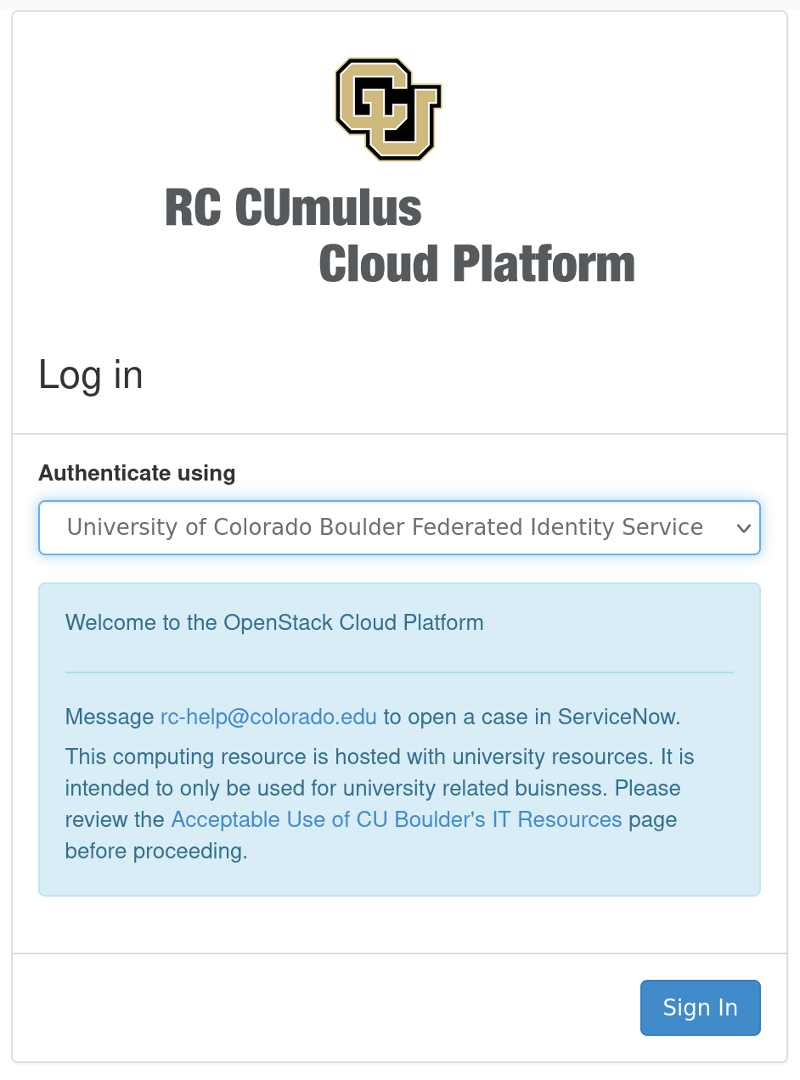
Choose a method for authentication. We recommend you select “Send Me a Push”. NOTE: You may not see the MFA step if you’ve recently authenticated and have an active session.
Accept the MFA request on your device.
You will be presented with a list of account names and numbers to which you have access. Click on the name of the desired account to expand the roles allocated to you. Click on the name of the desired role to log into the AWS console as that role. Note: Your access to the account selection page is valid for 8 hours. Your access to any specific AWS account console is valid for 4 hours.
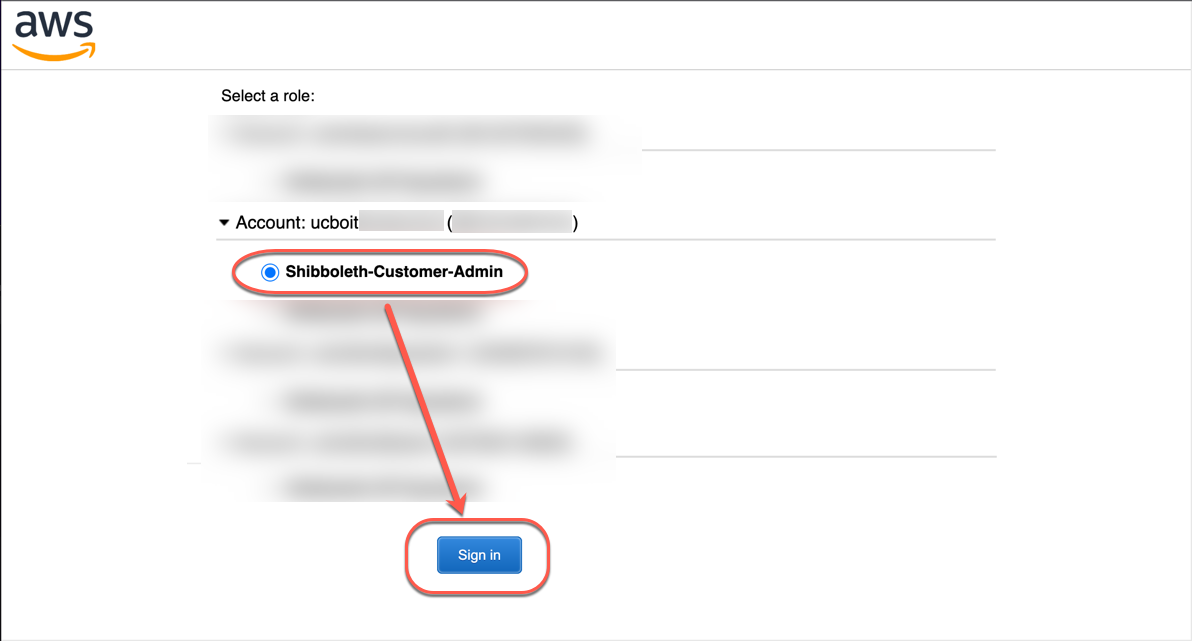
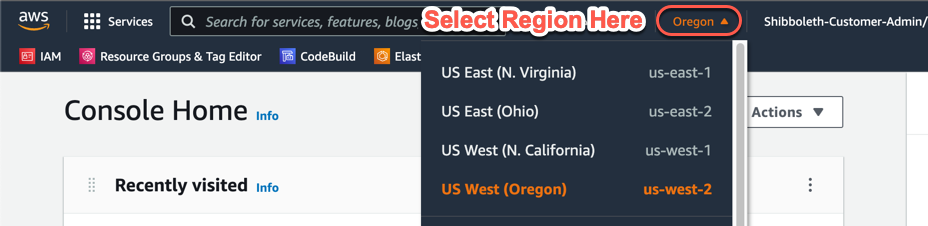
You will be logged in to the AWS Management Console. Always be sure to verify you have the AWS Region you are working with selected after logging in.
To log out from the AWS console for an account, click on your role name in the upper right corner and choose “Sign out”. To log out from the AWS account selection page, click your username in the upper right corner of the access portal and choose “Sign out”.