

Managing User Access#
CU Boulder Users#
CU Boulder user groups are managed through grouper.
Note: Users must be logged in to the CU Boulder VPN to access Grouper.
Adding Users#
AWS customers can add team members as Administrators to their AWS account. This is done using CU’s Grouper Tool. Note that changes can take up to 15 minutes to take effect.
Navigate to the Grouper Group for your AWS Account using one of the following methods:
Method 1: Use the direct link that was sent to you in your welcome email to go directly to the group you wish to administer, and login using your CU IdentiKey.
Method 2: Go to the My Grouper Groups view in Grouper. Login using your CU IdentiKey. Filter for
AWSLCA(if you can’t find your group easily). You will see a list of groups that you can administer. Select the Group for your AWS Account.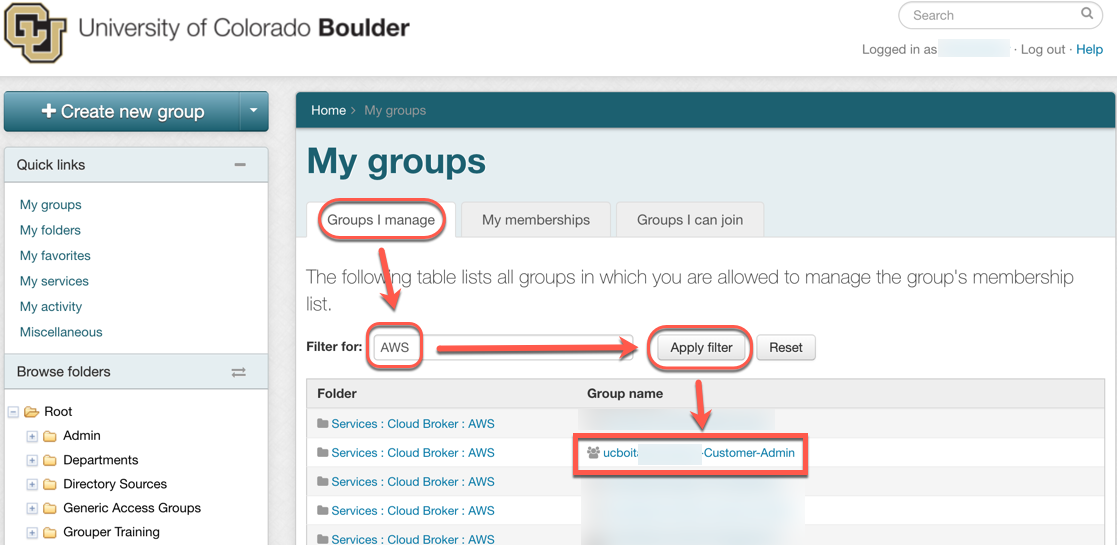
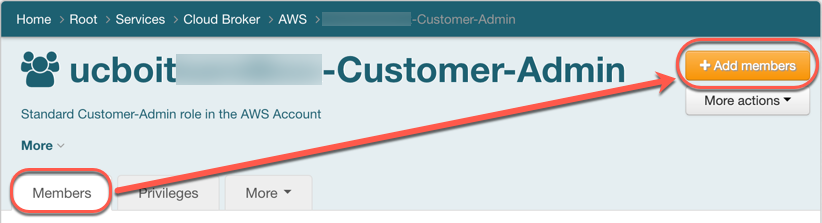
In the ‘Members’ tab view, click the “Add members” button.
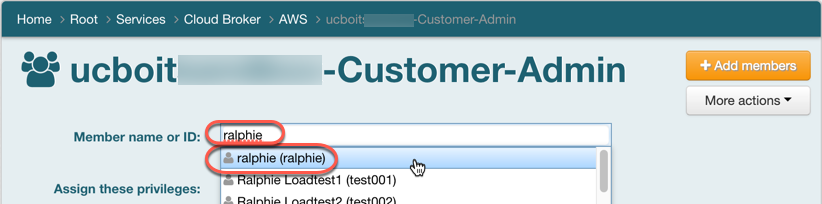
In the ‘Member name or ID’ field, enter the user’s CU IdentiKey and select the matching entry.
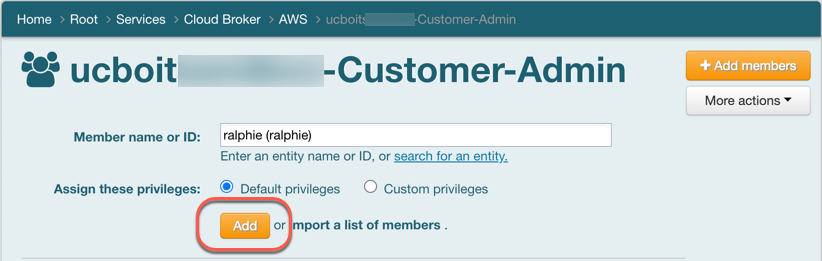
Click the ‘Add’ button.
Verify the new user show up in the table.
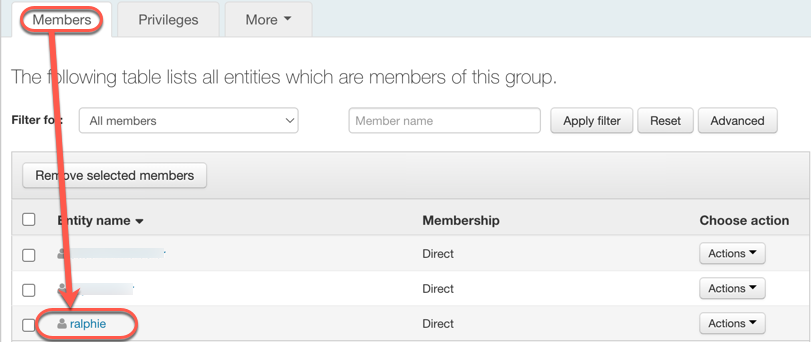
Removing Users#
Users can be removed from accessing the AWS account by removing them from the Grouper Group.
Login to the Grouper Group, as described above, using your CU IdentiKey.
In the ‘Members’ tab view, place a ‘check’ next to the user(s), and click the ‘Remove selected members’ button.
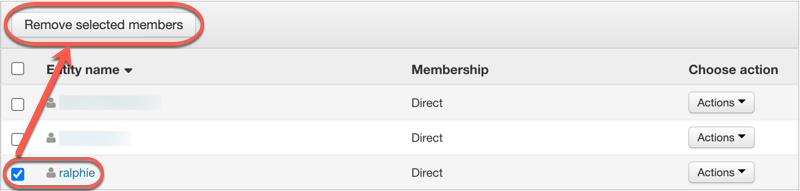
Verify the user(s) no longer appear in the table.
Non CU Boulder Users#
Non CU Boulder user groups are managed through Microsoft Entra groups.
Your Group Name#
The Entra group name to manage access to your AWS account is in the form oitcld-entra-<account-alias>-CustomerAdmin.
To find your account alias view the top right corner of the screen when logged into the AWS console.

Adding Users#
AWS customers can add team members as Administrators to their AWS account. This is done using AWS Entra Groups. Note that changes can take up to 15 minutes to take effect.
The technical contact person is added as Owner of the Entra group and they will have access to add members to the group.
Refer to Microsoft’s Documentation to add members to groups.
Removing Users#
Users can be removed from accessing the AWS account by removing them from the Entra Group.
Refer to Microsoft’s Documentation to remove members from groups.